You've built your first 3D scene in Blender. The modeling is done, the materials are applied, and now comes the moment every beginner both dreads and looks forward to: hitting that render button. But wait, which render engine should you even be using?
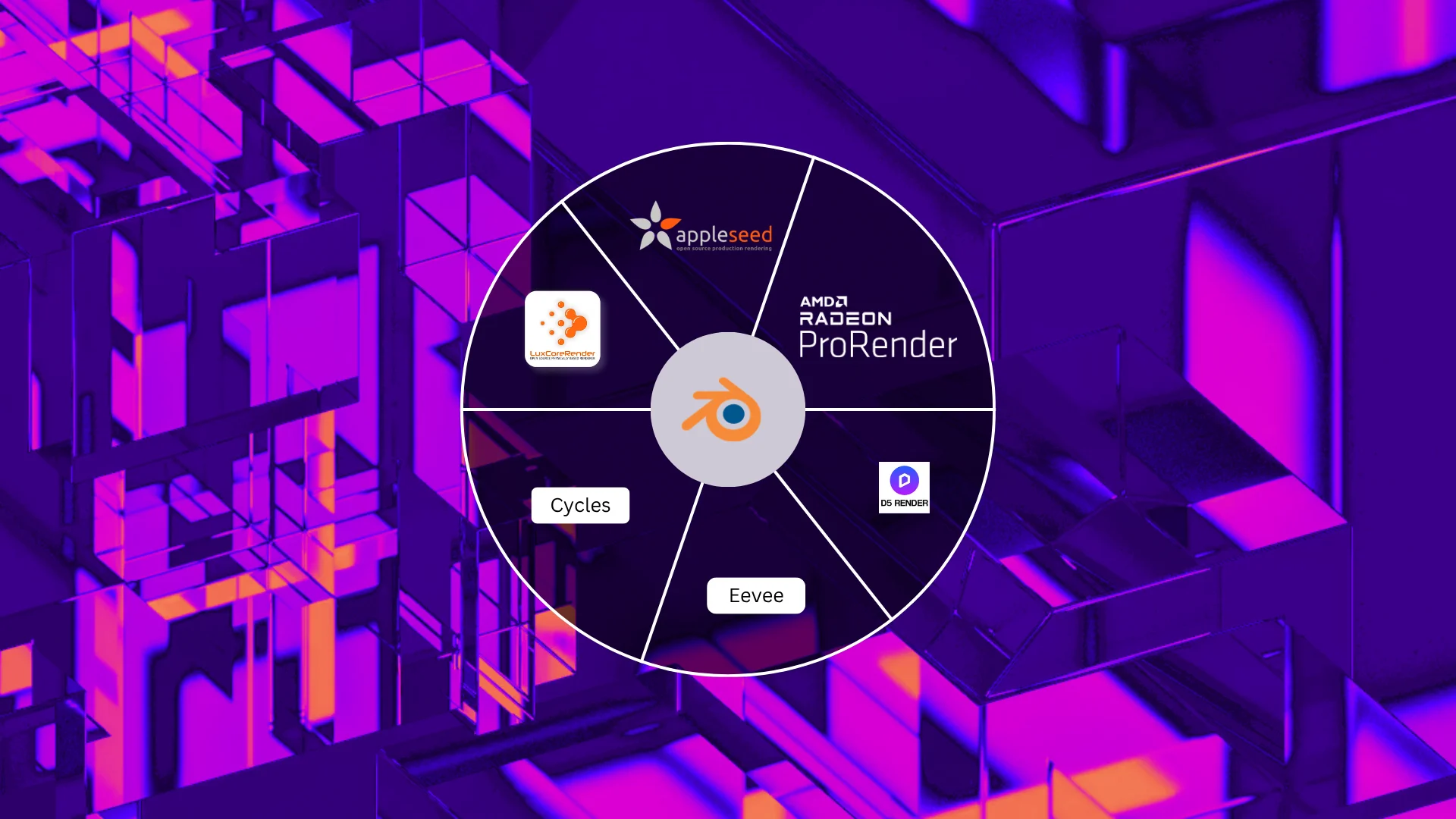
If you've spent any time in Blender forums or YouTube comment sections, you've probably seen names like Cycles, EEVEE, LuxCore, and ProRender thrown around. It can feel overwhelming fast. The good news? Every single render engine on this list is completely free, and by the end of this guide you'll know exactly which one suits your goals.
Let's break them all down, what they are, what they're best at, and most importantly, which one a beginner should start with.
💡 What exactly is a render engine? A render engine is the software that takes your 3D scene, all the geometry, lights, materials, and camera settings, and converts it into a final 2D image or animation. Think of it as the "photographer" of your 3D world. Different engines use different mathematical approaches to simulate light, which is why results can look dramatically different between them. |
Quick Comparison: All 5 Engines at a Glance
Before we go deep on each one, here's a snapshot to orient you:
Render Engine | Price | Type | Best For | Difficulty |
|---|
Cycles (Built-in) | Free | CPU/GPU Path Tracer | Realism, archviz, stills | Beginner |
EEVEE Next (Built-in) | Free | Real-time Rasterizer | Animation, motion design | Beginner |
LuxCoreRender | Free | Unbiased CPU/GPU | Scientific accuracy, glass | Intermediate |
appleseed | Free | Production Path Tracer | VFX, film-quality renders | Intermediate |
ProRender (AMD) | Free | GPU Path Tracer | AMD GPU users, product viz | Beginner–Mid |
1. Cycles: The Gold Standard for Realism

What is it?
Cycles is Blender's flagship render engine and the one most tutorials default to. It's a physically-based path tracer, meaning it simulates how light actually behaves in the real world, bouncing off surfaces, refracting through glass, scattering through skin. The result is stunning photorealism when set up correctly.
Cycles has been part of Blender since 2011 and has been continuously improved with every major release. As of Blender 4.x in 2026, Cycles supports GPU rendering via NVIDIA CUDA/OptiX, AMD HIP, Apple Metal, and Intel one API, so virtually any modern computer can use hardware acceleration.
What is it best for?
Architectural visualization and interior renders
Product photography and commercial visualization
Still image renders where quality is the priority
Photorealistic characters and environments
Any scene where accurate light simulation matters
The catch for beginners
Cycles is slow compared to real-time engines. A single high-quality frame can take minutes to hours depending on your hardware and scene complexity. You'll need to learn about "samples", the number of light calculations Cycles performs per pixel, and find the right balance between quality and render time. Too few samples and your image looks grainy (called noise). Too many and you're waiting forever.
The good news: Blender's built-in AI denoiser (powered by Intel Open Image Denoise or OptiX) dramatically reduces the samples you need, cutting render times significantly.
Best for: Beginners who want photorealistic results and don't mind longer render times. If you're learning archviz or product visualization, start here.
2. EEVEE Next: Speed Meets Stunning Quality

What is it?
EEVEE is Blender's real-time render engine, meaning it renders your scene almost instantly using your GPU. Originally launched with Blender 2.8, EEVEE received a massive overhaul in Blender 4.2, now called EEVEE Next, that brought ray-traced shadows, improved reflections, better subsurface scattering, and volumetric improvements.
EEVEE doesn't simulate light the same way Cycles does. Instead, it uses clever rasterization tricks and screen-space effects to approximate physically correct lighting at a fraction of the time. In 2026, the gap between EEVEE and Cycles quality is smaller than it has ever been.
What is it best for?
Animation and motion graphics where render speed is essential
Real-time previsualization while you work
Stylized renders, toon shading, and non-photorealistic looks
Game cinematic sequences and trailers
YouTube content and social media 3D animations
The catch for beginners
EEVEE's lighting doesn't fully simulate global illumination the way Cycles does. Some effects, like accurate caustics (the bright patterns light makes through glass) or deep volumetric fog, either look different or require extra setup. You'll also need to manually enable features like ambient occlusion and bloom that Cycles handles automatically.
Best for: Beginners making animations, motion graphics, or anyone who wants fast feedback while learning. EEVEE Next is remarkably capable in 2026 and shouldn't be dismissed as a "lesser" engine.
3. LuxCoreRender: Unbiased Rendering for Free

What is it?
LuxCoreRender is a free, open-source render engine that integrates with Blender via the BlendLuxCore add-on. It's what's known as an "unbiased" renderer, meaning it doesn't take shortcuts in its light simulation. Every light calculation is physically accurate, including caustics, spectral rendering, and complex light transport phenomena that other engines approximate.
LuxCoreRender was originally developed as LuxRender and has been actively maintained by the open-source community for over a decade. It supports both CPU and GPU rendering and handles glass, water, and translucent materials with exceptional accuracy.
What is it best for?
Jewelry and gemstone renders where light through glass is critical
Water and liquid simulations requiring accurate caustics
Scientific and technical visualization needing physical accuracy
Architectural renders where indirect lighting must be perfectly accurate
Artists who want professional results without a paid renderer
The catch for beginners
LuxCoreRender requires installing the BlendLuxCore add-on manually, and its material system works differently from Blender's standard shader nodes. You'll need to spend some time learning LuxCore-specific materials. It's also slower than Cycles on GPU in most scenarios, though it excels in specific situations like complex glass and liquid renders.
Best for: Intermediate beginners who want to push beyond Cycles, especially for jewelry, glass, and product visualization where light accuracy is non-negotiable.
4. appleseed: The Hidden Gem from VFX Production

What is it?
appleseed is a production-quality, open-source path tracer originally developed for use in VFX and film pipelines. It was designed with studio-level accuracy in mind and has been used in real production environments. The Blender integration is available via the blenderseed add-on.
What makes appleseed unique is its focus on spectral rendering (simulating light across different wavelengths rather than just RGB) and its built-in support for OSL (Open Shading Language), the same shading language used in industry-standard renderers like RenderMan and Arnold.
What is it best for?
Film and VFX quality renders with accurate color science
Artists who want to learn OSL shading for professional pipelines
Complex material systems requiring spectral accuracy
Still renders where maximum physical accuracy is the goal
The catch for beginners
appleseed is the most complex engine on this list from a setup perspective. The Blender add-on requires manual installation and the documentation, while thorough, assumes some existing knowledge of rendering concepts. It's not the best starting point if you're completely new to 3D, but it's an excellent stepping stone toward professional VFX pipelines.
Best for: Ambitious beginners with a specific interest in film VFX or who want to learn industry-standard rendering concepts for future career progression.
5. AMD Radeon ProRender: GPU Powerhouse for AMD Users

What is it?
AMD Radeon ProRender is a physically-based GPU render engine developed by AMD and available completely free for Blender via an official plugin. It's built on the OpenCL and Vulkan standards, meaning it runs on virtually any GPU, AMD, NVIDIA, or Intel, making it one of the most hardware-agnostic options on this list.
ProRender was designed to be a production-ready renderer that integrates seamlessly with Blender's existing material system. Many of your existing Principled BSDF materials will translate directly without rebuilding your shader networks from scratch.
What is it best for?
AMD GPU users who want hardware-accelerated rendering
Product visualization and commercial renders
Anyone on a multi-GPU workstation wanting to use all cards simultaneously
Artists already familiar with Cycles wanting a GPU-focused alternative
Scenes with lots of area lights and soft shadows
The catch for beginners
ProRender's Blender integration has historically lagged slightly behind its standalone version in terms of feature parity. Some advanced Blender shader nodes don't translate perfectly. AMD's development cadence for the Blender plugin is also less frequent than Cycles updates, so occasionally newer Blender features take time to be supported.
Best for: Beginners with AMD GPUs who want fast hardware-accelerated rendering, or anyone wanting a solid free alternative to Cycles with good material compatibility.
So Which Render Engine Should You Start With?
Here's the honest beginner's roadmap for 2026:
Start with Cycles if...
Your main goal is photorealistic renders, archviz, product viz, character art
You have patience for longer render times in exchange for quality
You're following most Blender tutorials (they default to Cycles)
You want to learn rendering fundamentals properly from day one
Start with EEVEE Next if...
You're making animations or want fast iteration while learning
You're interested in motion graphics or stylized renders
Your computer is older or doesn't have a powerful GPU
You want to see results instantly without waiting for renders
Graduate to LuxCore, appleseed, or ProRender when...
You've mastered Cycles and want to explore more specialized results
You have specific needs like jewelry, caustics, or VFX pipelines
You're targeting professional or studio-level output quality
🎯 The Korvix3D Beginner Recommendation If you're just starting out in 2026: begin with Cycles for stills and EEVEE Next for animations. Master those two first, they're built into Blender, have the most tutorials, and cover 95% of what most 3D artists ever need. The other engines on this list are powerful tools to explore once you've built a solid foundation. |
5 Beginner Tips for Better Renders, Whichever Engine You Choose
The render engine only gets you so far. Here are the things that actually make renders look professional:
Use HDRIs for lighting - they're the fastest way to get realistic environment lighting. Polyhaven.com offers hundreds for free.
Enable denoising - Blender's built-in denoiser lets you use far fewer samples without the grainy look, cutting render times dramatically.
Use the Principled BSDF shader - it's Blender's physically-based master shader and works well in both Cycles and EEVEE. Learn this one shader deeply before exploring others.
Render in 32-bit EXR format for still images - it preserves all the light data and gives you far more flexibility in post-processing than JPEG or PNG.
Practice with real assets - using professionally made 3D models teaches you how good topology and UV maps affect render quality.
Practice Rendering with Free 3D Models from Korvix3D
The best way to learn any render engine is to work with real, production-quality assets, not just basic cubes and spheres. On Korvix3D, you can download hundreds of free 3D models ready to drop straight into Blender and start rendering immediately.
Furniture & Interiors - perfect for testing Cycles lighting setups
Plants & Nature - ideal for EEVEE viewport renders and scene composition
Architectural Props - great for learning realistic material shading
Industrial & Mechanical Assets - excellent for testing PBR materials and reflections
Download a free model, set up your lighting, pick your render engine, and start experimenting. That hands-on practice is worth more than any tutorial.
Image credits


You've built your first 3D scene in Blender. The modeling is done, the materials are applied, and now comes the moment every beginner both dreads and looks forward to: hitting that render button. But wait, which render engine should you even be using?
If you've spent any time in Blender forums or YouTube comment sections, you've probably seen names like Cycles, EEVEE, LuxCore, and ProRender thrown around. It can feel overwhelming fast. The good news? Every single render engine on this list is completely free, and by the end of this guide you'll know exactly which one suits your goals.
Let's break them all down, what they are, what they're best at, and most importantly, which one a beginner should start with.
💡 What exactly is a render engine?
A render engine is the software that takes your 3D scene, all the geometry, lights, materials, and camera settings, and converts it into a final 2D image or animation. Think of it as the "photographer" of your 3D world. Different engines use different mathematical approaches to simulate light, which is why results can look dramatically different between them.
Quick Comparison: All 5 Engines at a Glance
Before we go deep on each one, here's a snapshot to orient you:
Render Engine
Price
Type
Best For
Difficulty
Cycles (Built-in)
Free
CPU/GPU Path Tracer
Realism, archviz, stills
Beginner
EEVEE Next (Built-in)
Free
Real-time Rasterizer
Animation, motion design
Beginner
LuxCoreRender
Free
Unbiased CPU/GPU
Scientific accuracy, glass
Intermediate
appleseed
Free
Production Path Tracer
VFX, film-quality renders
Intermediate
ProRender (AMD)
Free
GPU Path Tracer
AMD GPU users, product viz
Beginner–Mid
1. Cycles: The Gold Standard for Realism
What is it?
Cycles is Blender's flagship render engine and the one most tutorials default to. It's a physically-based path tracer, meaning it simulates how light actually behaves in the real world, bouncing off surfaces, refracting through glass, scattering through skin. The result is stunning photorealism when set up correctly.
Cycles has been part of Blender since 2011 and has been continuously improved with every major release. As of Blender 4.x in 2026, Cycles supports GPU rendering via NVIDIA CUDA/OptiX, AMD HIP, Apple Metal, and Intel one API, so virtually any modern computer can use hardware acceleration.
What is it best for?
Architectural visualization and interior renders
Product photography and commercial visualization
Still image renders where quality is the priority
Photorealistic characters and environments
Any scene where accurate light simulation matters
The catch for beginners
Cycles is slow compared to real-time engines. A single high-quality frame can take minutes to hours depending on your hardware and scene complexity. You'll need to learn about "samples", the number of light calculations Cycles performs per pixel, and find the right balance between quality and render time. Too few samples and your image looks grainy (called noise). Too many and you're waiting forever.
The good news: Blender's built-in AI denoiser (powered by Intel Open Image Denoise or OptiX) dramatically reduces the samples you need, cutting render times significantly.
Best for: Beginners who want photorealistic results and don't mind longer render times. If you're learning archviz or product visualization, start here.
2. EEVEE Next: Speed Meets Stunning Quality
What is it?
EEVEE is Blender's real-time render engine, meaning it renders your scene almost instantly using your GPU. Originally launched with Blender 2.8, EEVEE received a massive overhaul in Blender 4.2, now called EEVEE Next, that brought ray-traced shadows, improved reflections, better subsurface scattering, and volumetric improvements.
EEVEE doesn't simulate light the same way Cycles does. Instead, it uses clever rasterization tricks and screen-space effects to approximate physically correct lighting at a fraction of the time. In 2026, the gap between EEVEE and Cycles quality is smaller than it has ever been.
What is it best for?
Animation and motion graphics where render speed is essential
Real-time previsualization while you work
Stylized renders, toon shading, and non-photorealistic looks
Game cinematic sequences and trailers
YouTube content and social media 3D animations
The catch for beginners
EEVEE's lighting doesn't fully simulate global illumination the way Cycles does. Some effects, like accurate caustics (the bright patterns light makes through glass) or deep volumetric fog, either look different or require extra setup. You'll also need to manually enable features like ambient occlusion and bloom that Cycles handles automatically.
Best for: Beginners making animations, motion graphics, or anyone who wants fast feedback while learning. EEVEE Next is remarkably capable in 2026 and shouldn't be dismissed as a "lesser" engine.
3. LuxCoreRender: Unbiased Rendering for Free
What is it?
LuxCoreRender is a free, open-source render engine that integrates with Blender via the BlendLuxCore add-on. It's what's known as an "unbiased" renderer, meaning it doesn't take shortcuts in its light simulation. Every light calculation is physically accurate, including caustics, spectral rendering, and complex light transport phenomena that other engines approximate.
LuxCoreRender was originally developed as LuxRender and has been actively maintained by the open-source community for over a decade. It supports both CPU and GPU rendering and handles glass, water, and translucent materials with exceptional accuracy.
What is it best for?
Jewelry and gemstone renders where light through glass is critical
Water and liquid simulations requiring accurate caustics
Scientific and technical visualization needing physical accuracy
Architectural renders where indirect lighting must be perfectly accurate
Artists who want professional results without a paid renderer
The catch for beginners
LuxCoreRender requires installing the BlendLuxCore add-on manually, and its material system works differently from Blender's standard shader nodes. You'll need to spend some time learning LuxCore-specific materials. It's also slower than Cycles on GPU in most scenarios, though it excels in specific situations like complex glass and liquid renders.
Best for: Intermediate beginners who want to push beyond Cycles, especially for jewelry, glass, and product visualization where light accuracy is non-negotiable.
4. appleseed: The Hidden Gem from VFX Production
What is it?
appleseed is a production-quality, open-source path tracer originally developed for use in VFX and film pipelines. It was designed with studio-level accuracy in mind and has been used in real production environments. The Blender integration is available via the blenderseed add-on.
What makes appleseed unique is its focus on spectral rendering (simulating light across different wavelengths rather than just RGB) and its built-in support for OSL (Open Shading Language), the same shading language used in industry-standard renderers like RenderMan and Arnold.
What is it best for?
Film and VFX quality renders with accurate color science
Artists who want to learn OSL shading for professional pipelines
Complex material systems requiring spectral accuracy
Still renders where maximum physical accuracy is the goal
The catch for beginners
appleseed is the most complex engine on this list from a setup perspective. The Blender add-on requires manual installation and the documentation, while thorough, assumes some existing knowledge of rendering concepts. It's not the best starting point if you're completely new to 3D, but it's an excellent stepping stone toward professional VFX pipelines.
Best for: Ambitious beginners with a specific interest in film VFX or who want to learn industry-standard rendering concepts for future career progression.
5. AMD Radeon ProRender: GPU Powerhouse for AMD Users
What is it?
AMD Radeon ProRender is a physically-based GPU render engine developed by AMD and available completely free for Blender via an official plugin. It's built on the OpenCL and Vulkan standards, meaning it runs on virtually any GPU, AMD, NVIDIA, or Intel, making it one of the most hardware-agnostic options on this list.
ProRender was designed to be a production-ready renderer that integrates seamlessly with Blender's existing material system. Many of your existing Principled BSDF materials will translate directly without rebuilding your shader networks from scratch.
What is it best for?
AMD GPU users who want hardware-accelerated rendering
Product visualization and commercial renders
Anyone on a multi-GPU workstation wanting to use all cards simultaneously
Artists already familiar with Cycles wanting a GPU-focused alternative
Scenes with lots of area lights and soft shadows
The catch for beginners
ProRender's Blender integration has historically lagged slightly behind its standalone version in terms of feature parity. Some advanced Blender shader nodes don't translate perfectly. AMD's development cadence for the Blender plugin is also less frequent than Cycles updates, so occasionally newer Blender features take time to be supported.
Best for: Beginners with AMD GPUs who want fast hardware-accelerated rendering, or anyone wanting a solid free alternative to Cycles with good material compatibility.
So Which Render Engine Should You Start With?
Here's the honest beginner's roadmap for 2026:
Start with Cycles if...
Your main goal is photorealistic renders, archviz, product viz, character art
You have patience for longer render times in exchange for quality
You're following most Blender tutorials (they default to Cycles)
You want to learn rendering fundamentals properly from day one
Start with EEVEE Next if...
You're making animations or want fast iteration while learning
You're interested in motion graphics or stylized renders
Your computer is older or doesn't have a powerful GPU
You want to see results instantly without waiting for renders
Graduate to LuxCore, appleseed, or ProRender when...
You've mastered Cycles and want to explore more specialized results
You have specific needs like jewelry, caustics, or VFX pipelines
You're targeting professional or studio-level output quality
🎯 The Korvix3D Beginner Recommendation
If you're just starting out in 2026: begin with Cycles for stills and EEVEE Next for animations. Master those two first, they're built into Blender, have the most tutorials, and cover 95% of what most 3D artists ever need. The other engines on this list are powerful tools to explore once you've built a solid foundation.
5 Beginner Tips for Better Renders, Whichever Engine You Choose
The render engine only gets you so far. Here are the things that actually make renders look professional:
Use HDRIs for lighting - they're the fastest way to get realistic environment lighting. Polyhaven.com offers hundreds for free.
Enable denoising - Blender's built-in denoiser lets you use far fewer samples without the grainy look, cutting render times dramatically.
Use the Principled BSDF shader - it's Blender's physically-based master shader and works well in both Cycles and EEVEE. Learn this one shader deeply before exploring others.
Render in 32-bit EXR format for still images - it preserves all the light data and gives you far more flexibility in post-processing than JPEG or PNG.
Practice with real assets - using professionally made 3D models teaches you how good topology and UV maps affect render quality.
Practice Rendering with Free 3D Models from Korvix3D
The best way to learn any render engine is to work with real, production-quality assets, not just basic cubes and spheres. On Korvix3D, you can download hundreds of free 3D models ready to drop straight into Blender and start rendering immediately.
Furniture & Interiors - perfect for testing Cycles lighting setups
Plants & Nature - ideal for EEVEE viewport renders and scene composition
Architectural Props - great for learning realistic material shading
Industrial & Mechanical Assets - excellent for testing PBR materials and reflections
Download a free model, set up your lighting, pick your render engine, and start experimenting. That hands-on practice is worth more than any tutorial.
Image credits
Cycles - https://www.cycles-renderer.org/
Eevee - https://www.youtube.com/@jalpranjal
LuxCore render - Nexus Studio
appleSeed - Juan Carlos Gutiérrez
AMD Pro Radeon