There's a specific kind of disappointment that comes from downloading a 3D asset that looked perfect in the preview, only to open it and find the topology is a mess, the UVs overlap in three places, and the "4K textures" are actually a single 1K image stretched across the whole model. It's not a rare experience. Almost every artist who has sourced assets for any length of time has a folder somewhere full of downloads that seemed promising and turned out to be unusable.
The frustrating part is that most of these problems are detectable before you download anything, if you know what to look for. The preview render is designed to sell the asset, and a skilled artist can make almost anything look good under the right lighting with the right camera angle. What the preview can't hide, if you know where to look, are the structural issues underneath.
This is the checklist. Not a vague "check the quality" suggestion, but the specific things to actually look at, in roughly the order they matter, before you commit a download to your project.
Start With the Preview Images, Not Just the Hero Shot
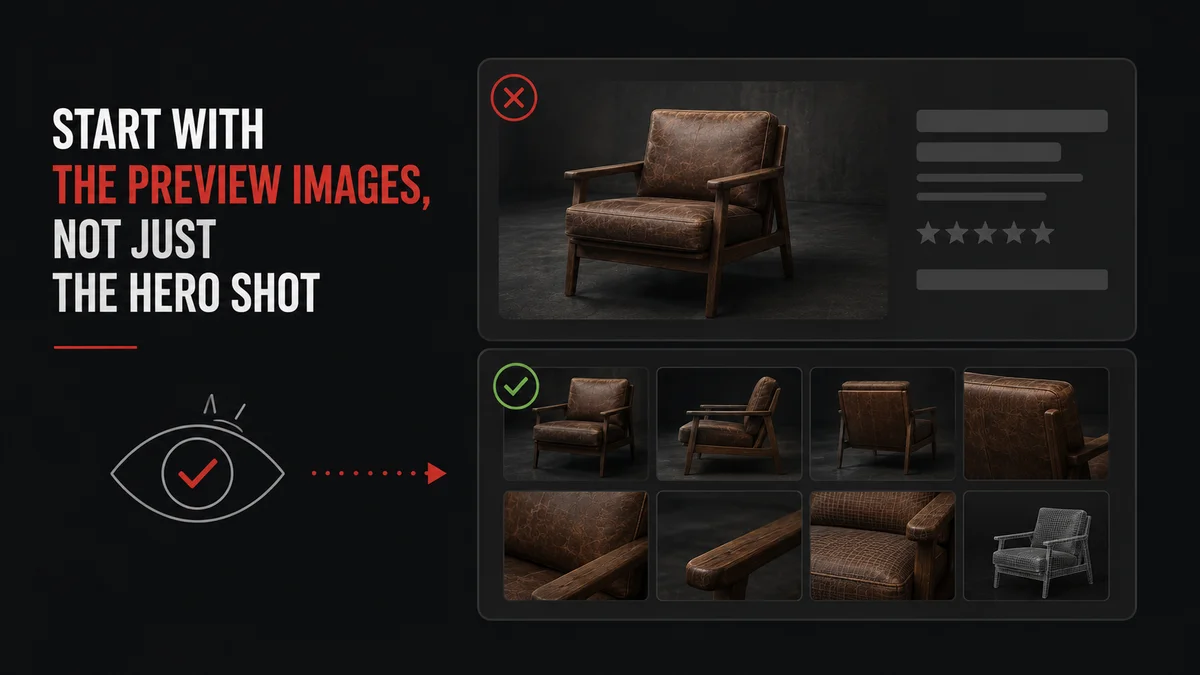
Most asset listings lead with one polished hero render, the kind of image that took the creator twenty minutes of lighting setup to get exactly right. That image tells you almost nothing about whether the asset will work in your scene, because your lighting won't be that lighting.
What actually matters is whether the listing includes additional views beyond the hero shot. Specifically, look for a wireframe render. If a creator is confident in their topology, they'll show it, because clean topology looks good in wireframe and the creator knows it's a selling point. The absence of a wireframe view isn't proof of bad topology, but it's a signal worth noting, especially for character models, hard surface assets, or anything that might need to deform or be modified.
Also look for multiple angle views, ideally including the back and underside of the asset. It's a common shortcut for lower-effort assets to model the front and visible surfaces in detail while leaving the back as a flat, untextured plane, since the hero render only shows the front. If every preview image shows the same angle, that's worth being suspicious of.
If the listing includes an in-context render, an image showing the asset placed in a realistic scene rather than isolated on a grey background, that's a good sign. It suggests the creator tested the asset under different lighting and it held up, which is more than the isolated hero render tells you.
Check the Polygon Count Against What You Actually Need
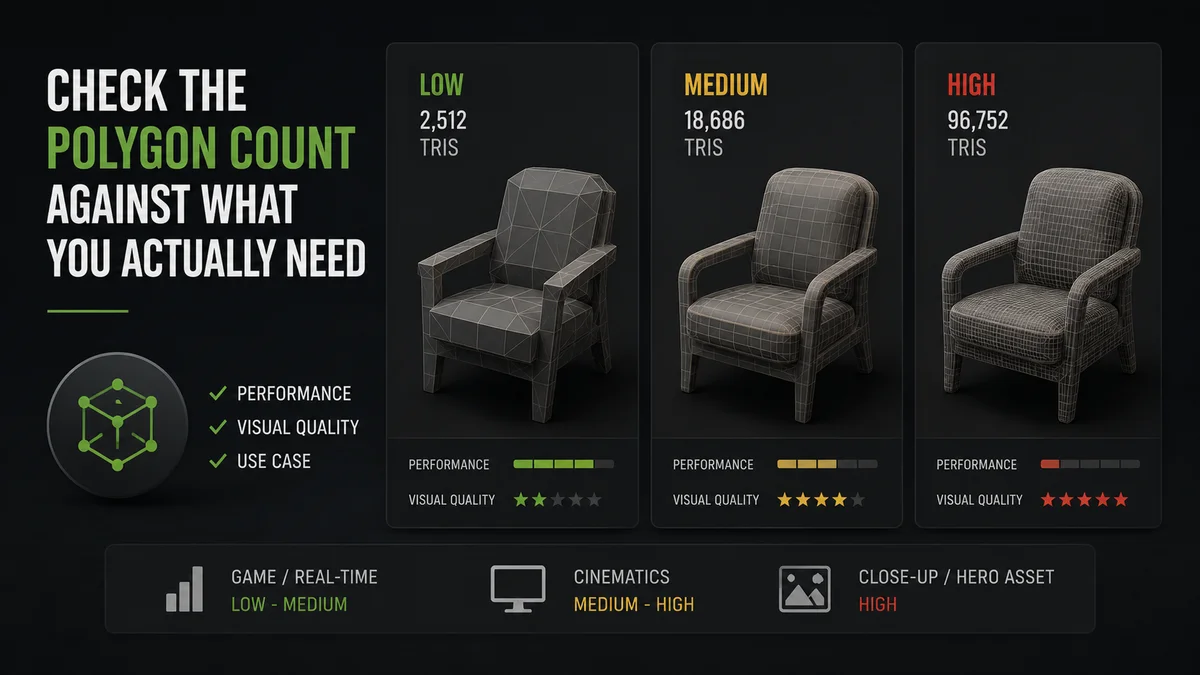
Polygon count gets treated as a single "good or bad" number, but the right polygon count depends entirely on what you're using the asset for, and the wrong polygon count in either direction causes real problems.
For real-time use, game engines, real-time visualization, VR, an asset with an excessive polygon count for its visual complexity is a performance problem waiting to happen. A simple wooden chair with half a million polygons isn't "high quality," it's poorly optimized, because the visual detail of a chair doesn't require that density. Good game-ready assets achieve their visual quality primarily through textures and normal maps, not through brute-force polygon density.
For offline rendering, film, high-end product visualization, architectural stills, polygon count matters less in absolute terms, but a very low polygon count on an asset that needs to hold up in close-up renders can mean visible faceting on curved surfaces, edges that look harder than they should, and silhouettes that read as obviously low-poly even from a distance.
The practical check: does the listing tell you the polygon or vertex count at all? Listings that omit this information entirely are giving you one less data point to evaluate against your use case. When the count is provided, compare it against similar assets in the same category rather than judging it in isolation. A character model and a simple prop have very different reasonable ranges, and "is this number good" only makes sense relative to what kind of object it is.
Look Closely at the UV Layout
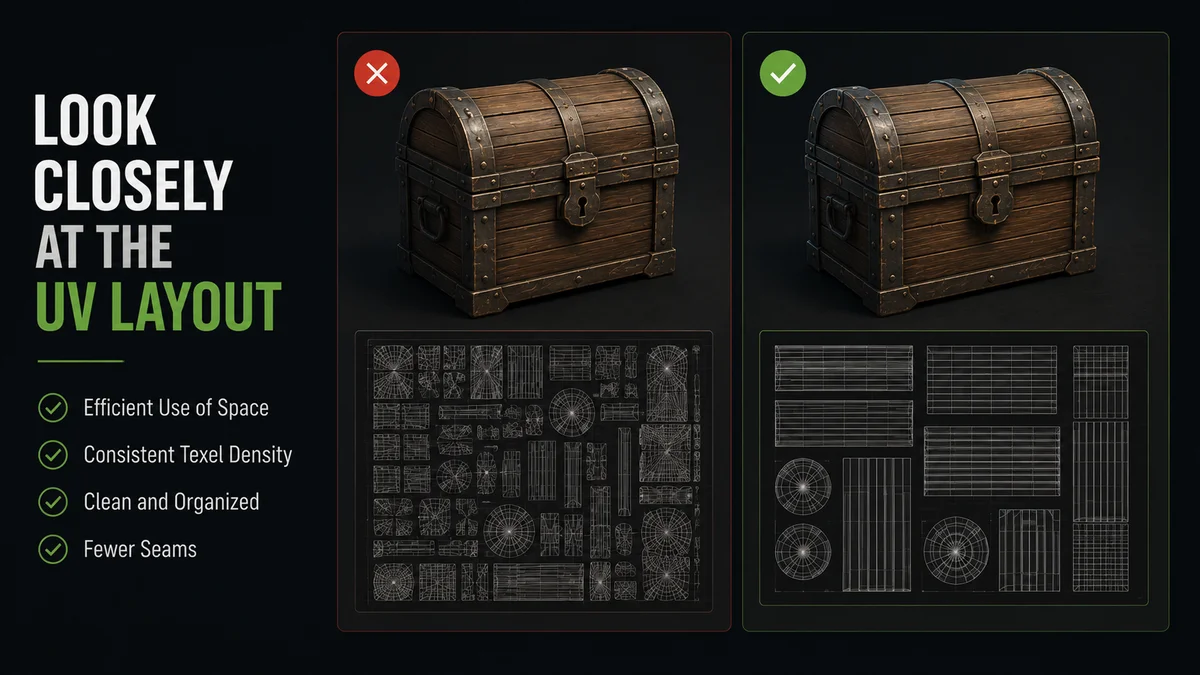
UV unwrapping is one of the least visible parts of a 3D asset from the outside, and one of the most consequential once you're actually working with it. Bad UVs don't always show up in the preview render, but they show up the moment you try to change a texture, apply a different material, or adjust the asset for your scene.
If the listing includes a UV layout image, that's a strong positive signal on its own, similar to the wireframe situation. Creators who include UV maps are generally confident in that part of their work, because messy, overlapping UV layouts look bad even to someone who doesn't fully understand UV mapping.
When a UV layout image is available, look for a few specific things. Texture space should be used efficiently, without huge empty areas that waste resolution. Seams should be placed in logical locations, along natural edges of the object, rather than running through the middle of visible surfaces where they'll show as visible texture discontinuities. And there shouldn't be significant overlapping UV islands unless the asset specifically uses tiling textures where overlap is intentional.
If no UV layout is shown and the listing doesn't mention UVs at all, this is genuinely one of the harder things to evaluate before downloading. It's also one of the most common sources of post-download disappointment, particularly for assets where you plan to apply your own materials rather than using the provided textures as-is.
Texture Resolution Claims Versus Texture Reality
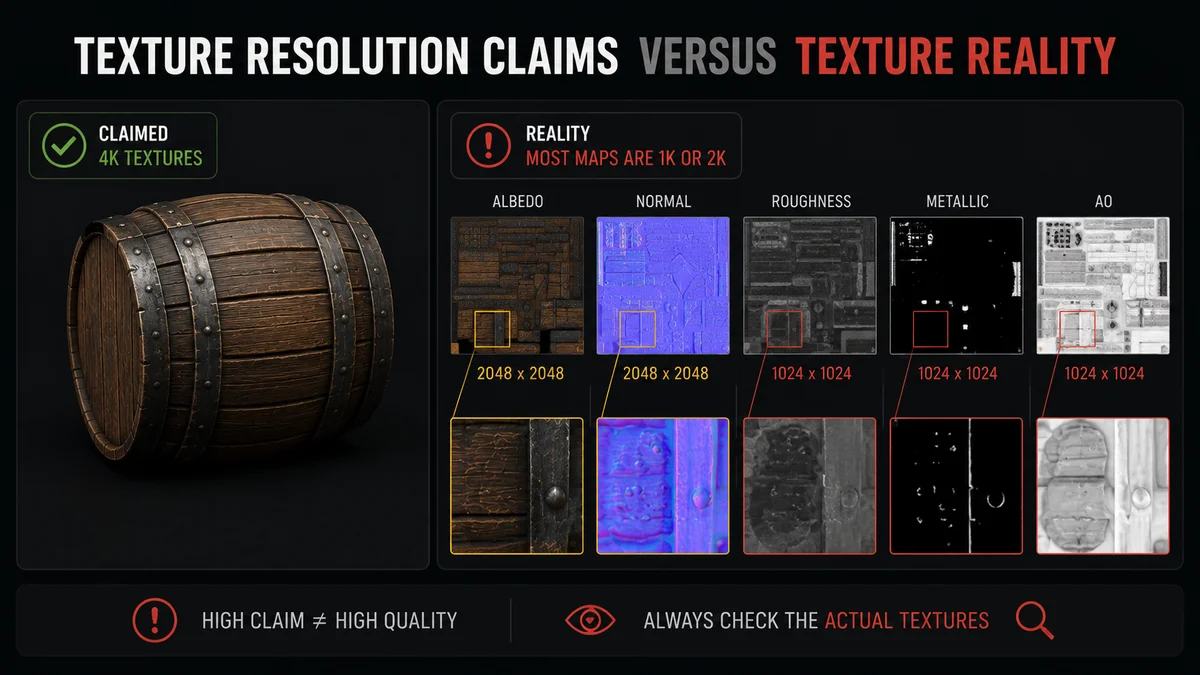
"4K textures" is one of the most commonly overstated claims in 3D asset listings, and it's worth understanding what can go wrong even when the claim is technically true.
The first thing to check is whether 4K refers to the actual texture files provided, or to the resolution the preview render was rendered at. These are different things. A preview render can be output at 4K resolution using a 1K texture, because render resolution and texture resolution are independent. If the listing only specifies render resolution without confirming texture file resolution, that 4K claim might describe the preview image rather than the asset you'd actually receive.
The second thing, when texture resolution is genuinely confirmed, is whether that resolution is appropriate for the asset's complexity and surface area. A small prop, a doorknob, a single bottle, doesn't necessarily benefit from 4K textures, and a 4K texture on a tiny object might just mean an unnecessarily large file size without a visible quality difference. Conversely, a large environment piece, a building facade, a vehicle, genuinely needs higher resolution to avoid visible blurriness when viewed up close.
Look for confirmation of which PBR maps are actually included. A listing that says "PBR textures included" without specifying which maps, albedo, normal, roughness, metallic, ambient occlusion, leaves room for the asset to include only a subset. Albedo and normal maps alone produce a noticeably flatter, less realistic result than a full PBR set with roughness and metallic data included.
Read the License Before You Get Attached to the Asset
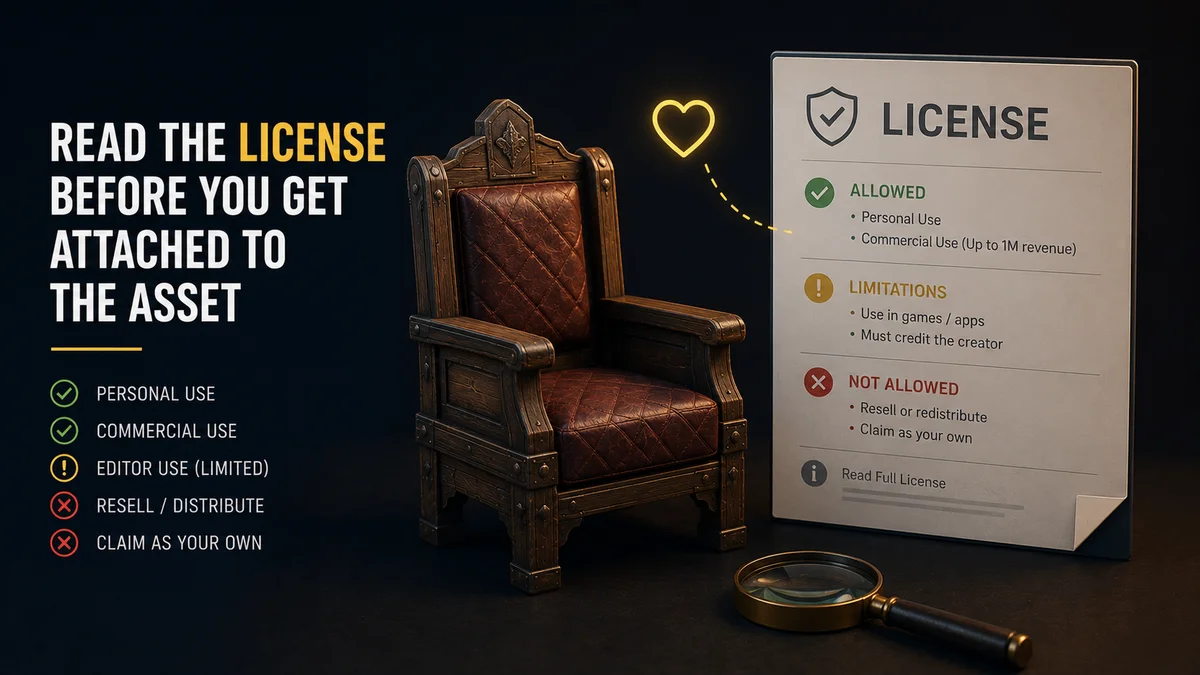
This isn't a quality issue in the visual sense, but it's a quality issue in the sense that an asset you can't actually use for your intended purpose is, functionally, a bad asset for you, regardless of how well it's modeled.
Before downloading, particularly for anything you intend to use commercially, check what the license actually permits. Standard commercial licenses typically cover use in games, films, renders, and similar end products. Fewer licenses cover reselling the asset itself, using it in another asset pack, or certain specific use cases like NFTs or AI training datasets, which some platforms explicitly exclude.
The practical habit worth building: read the license terms once for any platform you use regularly, understand what the standard license covers, and then you mostly don't need to re-read it for every individual asset, only for edge cases that fall outside typical use. Platforms with clear, plain-language licensing make this dramatically easier than platforms with dense legal text that requires careful parsing for every download.
A beautiful asset that isn't available in a format your software can use cleanly is, for your purposes, not actually available.
Before downloading, confirm the formats provided match your pipeline. FBX and OBJ cover most general cases. If you're working with PBR materials and want the smoothest import, GLTF is worth checking for specifically, since it tends to preserve material setups more faithfully than FBX on import into most software.
If the asset includes rigging or animation and that matters for your use case, confirm this explicitly rather than assuming. "Rigged" can mean anything from a full production-ready rig with proper weight painting to a basic skeleton with rough, unrefined weights that will need cleanup before it's usable.
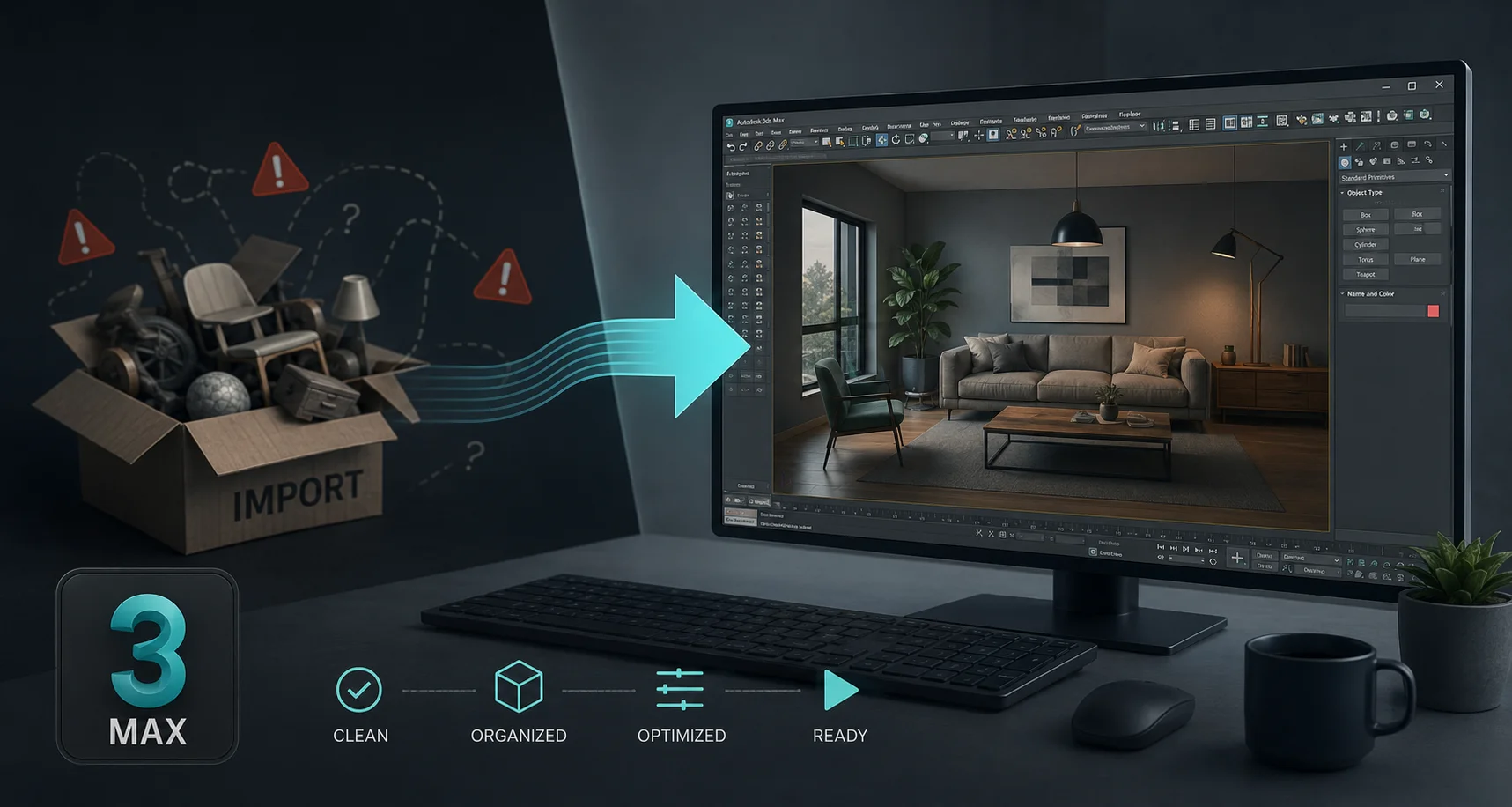
For assets sourced through a platform with native bridge plugins for your software, like Korvix3D's plugins for Blender, Maya, 3DS Max, Cinema4D, Unity, and Unreal Engine, this entire concern becomes less relevant, since the plugin delivers the asset in a format appropriate for your active application automatically. For assets sourced through general marketplaces, checking format availability before downloading remains a genuinely important step.
Reviews and Download History Tell You More Than You'd Think
On platforms where user reviews and download counts are visible, this information is often more reliable than the listing's own description, because it reflects how the asset performed for other people who actually used it in real projects.
An asset with a high download count and consistently positive reviews has effectively been quality-tested by a large number of independent users. An asset with very few downloads isn't necessarily bad, new uploads haven't had time to accumulate downloads yet, but an asset with a meaningful download history and poor reviews is a clear signal worth taking seriously, even if the preview render looks fine.
On platforms where creator earnings are weighted by quality ratings rather than purely by download volume, like Korvix3D's effort-weighted payout system, there's an additional layer worth knowing about. Assets from creators with strong quality ratings have effectively been filtered through a system that financially rewards quality, which means the baseline quality floor across the library tends to be higher than on platforms where any upload earns the same regardless of how it performs for users afterward.
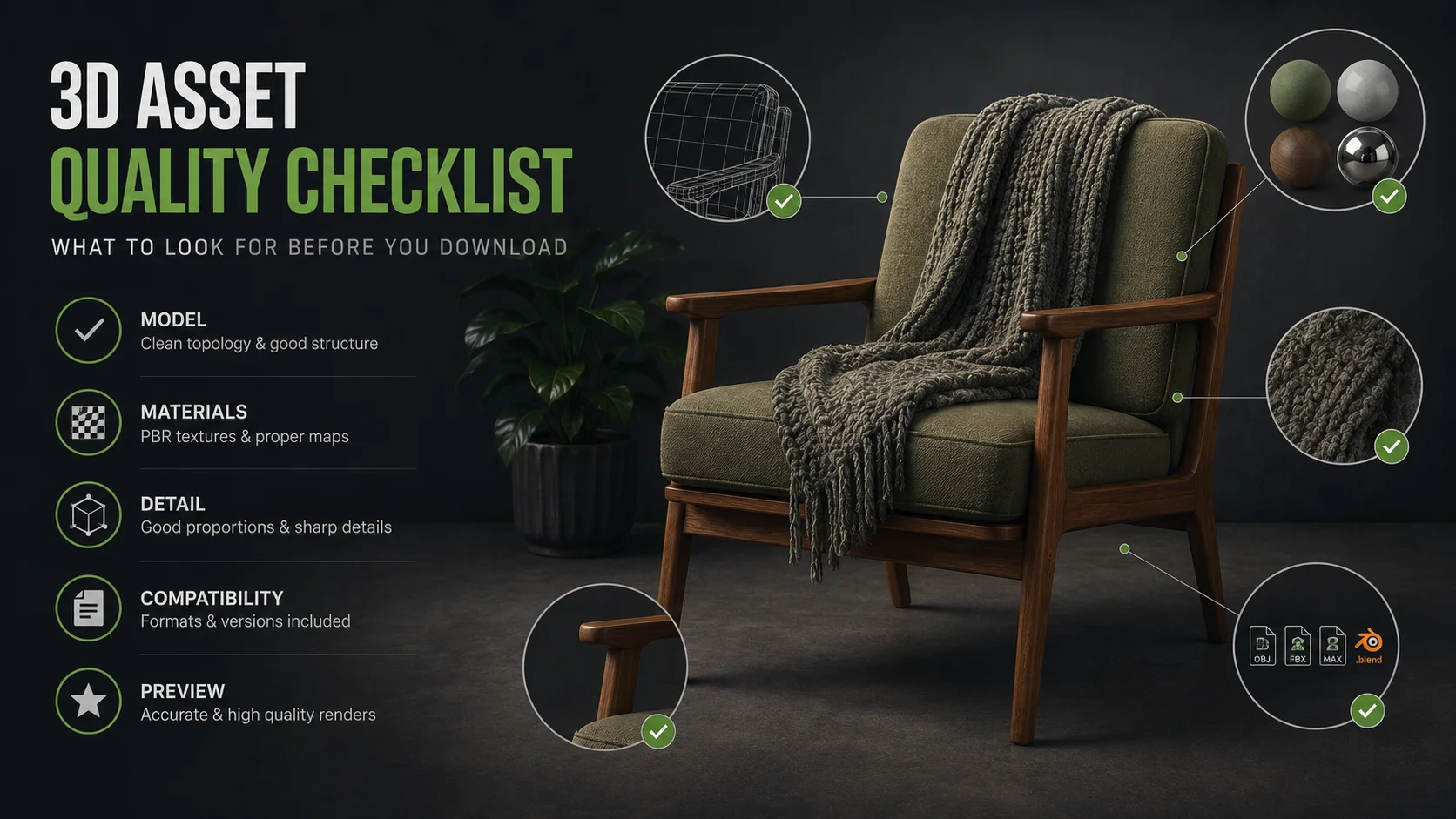
The Quick Version: A Checklist You Can Actually Use
Pulling all of this into something usable in the moment, before downloading any asset, run through these checks:
Does the listing show multiple angles, including the back or underside, not just one hero shot from the most flattering angle.
Is a wireframe view provided, and if so, does the topology look clean and appropriate for the object's complexity.
Is polygon count specified, and does it make sense for both the object's visual complexity and your intended use case, real-time versus offline rendering.
Is a UV layout shown, and if so, does it look efficient and free of unintended overlaps.
Is texture resolution specified for the actual files provided, not just the render output, and does it include a full PBR set rather than just albedo and normal.
Are the file formats listed compatible with your software, and if rigging or animation matters, is it explicitly confirmed rather than assumed.
Does the license cover your intended use, particularly if you're working commercially.
If reviews and download counts are visible, do they support the listing's claims.
None of these individually is a dealbreaker on its own, an asset missing a wireframe view isn't automatically bad. But the more of these signals are present and positive, the more confident you can be that what you download will match what the preview promised, and the fewer surprises you'll find when you actually open the file.
Browse a curated, quality-rated library →https://korvix3d.com/assets
Frequently Asked Questions
What polygon count is considered good for a 3D asset? There's no single good number, it depends entirely on the asset's purpose. A game-ready prop for a mobile title might target a few hundred to a few thousand triangles, while a hero asset for offline rendering might use tens of thousands or more. Compare against similar assets in the same category and intended use rather than judging polygon count in isolation.
Why do textures look different in my scene than in the preview render? Preview renders are typically produced under controlled lighting with post-processing applied. In your own scene, the asset is lit by your lighting setup and rendered with your settings. Texture color space settings, missing normal map connections, or simply different lighting can all cause an asset to look noticeably different from its preview.
How can I tell if a 3D asset has good topology without opening it? Look for a wireframe preview image in the listing. Clean topology shows consistent edge flow, no excessive triangulation in areas that should have clean quad flow, and no obviously dense or sparse regions that don't match the object's visual complexity. The absence of a wireframe image doesn't confirm bad topology, but its presence is a positive signal.
Does a higher price always mean higher quality for 3D assets? Not reliably. Price often reflects the complexity and time investment of an asset, a fully rigged character costs more to produce than a simple prop, but price doesn't directly correlate with topology cleanliness, UV quality, or texture accuracy. The checklist items in this guide are better quality indicators than price alone.
What's the most common quality issue that isn't visible in preview renders? UV layout problems are probably the least visible in preview renders and the most consequential once you start working with an asset. Overlapping UVs, inefficient texture space usage, and poorly placed seams don't necessarily affect how an asset looks in its original preview, but cause real problems the moment you try to modify materials or adjust the asset for your scene.

There's a specific kind of disappointment that comes from downloading a 3D asset that looked perfect in the preview, only to open it and find the topology is a mess, the UVs overlap in three places, and the "4K textures" are actually a single 1K image stretched across the whole model. It's not a rare experience. Almost every artist who has sourced assets for any length of time has a folder somewhere full of downloads that seemed promising and turned out to be unusable.
The frustrating part is that most of these problems are detectable before you download anything, if you know what to look for. The preview render is designed to sell the asset, and a skilled artist can make almost anything look good under the right lighting with the right camera angle. What the preview can't hide, if you know where to look, are the structural issues underneath.
This is the checklist. Not a vague "check the quality" suggestion, but the specific things to actually look at, in roughly the order they matter, before you commit a download to your project.
Start With the Preview Images, Not Just the Hero Shot
Most asset listings lead with one polished hero render, the kind of image that took the creator twenty minutes of lighting setup to get exactly right. That image tells you almost nothing about whether the asset will work in your scene, because your lighting won't be that lighting.
What actually matters is whether the listing includes additional views beyond the hero shot. Specifically, look for a wireframe render. If a creator is confident in their topology, they'll show it, because clean topology looks good in wireframe and the creator knows it's a selling point. The absence of a wireframe view isn't proof of bad topology, but it's a signal worth noting, especially for character models, hard surface assets, or anything that might need to deform or be modified.
Also look for multiple angle views, ideally including the back and underside of the asset. It's a common shortcut for lower-effort assets to model the front and visible surfaces in detail while leaving the back as a flat, untextured plane, since the hero render only shows the front. If every preview image shows the same angle, that's worth being suspicious of.
If the listing includes an in-context render, an image showing the asset placed in a realistic scene rather than isolated on a grey background, that's a good sign. It suggests the creator tested the asset under different lighting and it held up, which is more than the isolated hero render tells you.
Check the Polygon Count Against What You Actually Need
Polygon count gets treated as a single "good or bad" number, but the right polygon count depends entirely on what you're using the asset for, and the wrong polygon count in either direction causes real problems.
For real-time use, game engines, real-time visualization, VR, an asset with an excessive polygon count for its visual complexity is a performance problem waiting to happen. A simple wooden chair with half a million polygons isn't "high quality," it's poorly optimized, because the visual detail of a chair doesn't require that density. Good game-ready assets achieve their visual quality primarily through textures and normal maps, not through brute-force polygon density.
For offline rendering, film, high-end product visualization, architectural stills, polygon count matters less in absolute terms, but a very low polygon count on an asset that needs to hold up in close-up renders can mean visible faceting on curved surfaces, edges that look harder than they should, and silhouettes that read as obviously low-poly even from a distance.
The practical check: does the listing tell you the polygon or vertex count at all? Listings that omit this information entirely are giving you one less data point to evaluate against your use case. When the count is provided, compare it against similar assets in the same category rather than judging it in isolation. A character model and a simple prop have very different reasonable ranges, and "is this number good" only makes sense relative to what kind of object it is.
Look Closely at the UV Layout
UV unwrapping is one of the least visible parts of a 3D asset from the outside, and one of the most consequential once you're actually working with it. Bad UVs don't always show up in the preview render, but they show up the moment you try to change a texture, apply a different material, or adjust the asset for your scene.
If the listing includes a UV layout image, that's a strong positive signal on its own, similar to the wireframe situation. Creators who include UV maps are generally confident in that part of their work, because messy, overlapping UV layouts look bad even to someone who doesn't fully understand UV mapping.
When a UV layout image is available, look for a few specific things. Texture space should be used efficiently, without huge empty areas that waste resolution. Seams should be placed in logical locations, along natural edges of the object, rather than running through the middle of visible surfaces where they'll show as visible texture discontinuities. And there shouldn't be significant overlapping UV islands unless the asset specifically uses tiling textures where overlap is intentional.
If no UV layout is shown and the listing doesn't mention UVs at all, this is genuinely one of the harder things to evaluate before downloading. It's also one of the most common sources of post-download disappointment, particularly for assets where you plan to apply your own materials rather than using the provided textures as-is.
Texture Resolution Claims Versus Texture Reality
"4K textures" is one of the most commonly overstated claims in 3D asset listings, and it's worth understanding what can go wrong even when the claim is technically true.
The first thing to check is whether 4K refers to the actual texture files provided, or to the resolution the preview render was rendered at. These are different things. A preview render can be output at 4K resolution using a 1K texture, because render resolution and texture resolution are independent. If the listing only specifies render resolution without confirming texture file resolution, that 4K claim might describe the preview image rather than the asset you'd actually receive.
The second thing, when texture resolution is genuinely confirmed, is whether that resolution is appropriate for the asset's complexity and surface area. A small prop, a doorknob, a single bottle, doesn't necessarily benefit from 4K textures, and a 4K texture on a tiny object might just mean an unnecessarily large file size without a visible quality difference. Conversely, a large environment piece, a building facade, a vehicle, genuinely needs higher resolution to avoid visible blurriness when viewed up close.
Look for confirmation of which PBR maps are actually included. A listing that says "PBR textures included" without specifying which maps, albedo, normal, roughness, metallic, ambient occlusion, leaves room for the asset to include only a subset. Albedo and normal maps alone produce a noticeably flatter, less realistic result than a full PBR set with roughness and metallic data included.
Read the License Before You Get Attached to the Asset
This isn't a quality issue in the visual sense, but it's a quality issue in the sense that an asset you can't actually use for your intended purpose is, functionally, a bad asset for you, regardless of how well it's modeled.
Before downloading, particularly for anything you intend to use commercially, check what the license actually permits. Standard commercial licenses typically cover use in games, films, renders, and similar end products. Fewer licenses cover reselling the asset itself, using it in another asset pack, or certain specific use cases like NFTs or AI training datasets, which some platforms explicitly exclude.
The practical habit worth building: read the license terms once for any platform you use regularly, understand what the standard license covers, and then you mostly don't need to re-read it for every individual asset, only for edge cases that fall outside typical use. Platforms with clear, plain-language licensing make this dramatically easier than platforms with dense legal text that requires careful parsing for every download.
Check the File Formats Actually Provided
A beautiful asset that isn't available in a format your software can use cleanly is, for your purposes, not actually available.
Before downloading, confirm the formats provided match your pipeline. FBX and OBJ cover most general cases. If you're working with PBR materials and want the smoothest import, GLTF is worth checking for specifically, since it tends to preserve material setups more faithfully than FBX on import into most software.
If the asset includes rigging or animation and that matters for your use case, confirm this explicitly rather than assuming. "Rigged" can mean anything from a full production-ready rig with proper weight painting to a basic skeleton with rough, unrefined weights that will need cleanup before it's usable.
For assets sourced through a platform with native bridge plugins for your software, like Korvix3D's plugins for Blender, Maya, 3DS Max, Cinema4D, Unity, and Unreal Engine, this entire concern becomes less relevant, since the plugin delivers the asset in a format appropriate for your active application automatically. For assets sourced through general marketplaces, checking format availability before downloading remains a genuinely important step.
Reviews and Download History Tell You More Than You'd Think
On platforms where user reviews and download counts are visible, this information is often more reliable than the listing's own description, because it reflects how the asset performed for other people who actually used it in real projects.
An asset with a high download count and consistently positive reviews has effectively been quality-tested by a large number of independent users. An asset with very few downloads isn't necessarily bad, new uploads haven't had time to accumulate downloads yet, but an asset with a meaningful download history and poor reviews is a clear signal worth taking seriously, even if the preview render looks fine.
On platforms where creator earnings are weighted by quality ratings rather than purely by download volume, like Korvix3D's effort-weighted payout system, there's an additional layer worth knowing about. Assets from creators with strong quality ratings have effectively been filtered through a system that financially rewards quality, which means the baseline quality floor across the library tends to be higher than on platforms where any upload earns the same regardless of how it performs for users afterward.
The Quick Version: A Checklist You Can Actually Use
Pulling all of this into something usable in the moment, before downloading any asset, run through these checks:
Does the listing show multiple angles, including the back or underside, not just one hero shot from the most flattering angle.
Is a wireframe view provided, and if so, does the topology look clean and appropriate for the object's complexity.
Is polygon count specified, and does it make sense for both the object's visual complexity and your intended use case, real-time versus offline rendering.
Is a UV layout shown, and if so, does it look efficient and free of unintended overlaps.
Is texture resolution specified for the actual files provided, not just the render output, and does it include a full PBR set rather than just albedo and normal.
Are the file formats listed compatible with your software, and if rigging or animation matters, is it explicitly confirmed rather than assumed.
Does the license cover your intended use, particularly if you're working commercially.
If reviews and download counts are visible, do they support the listing's claims.
None of these individually is a dealbreaker on its own, an asset missing a wireframe view isn't automatically bad. But the more of these signals are present and positive, the more confident you can be that what you download will match what the preview promised, and the fewer surprises you'll find when you actually open the file.
Browse a curated, quality-rated library →https://korvix3d.com/assets
Frequently Asked Questions
What polygon count is considered good for a 3D asset? There's no single good number, it depends entirely on the asset's purpose. A game-ready prop for a mobile title might target a few hundred to a few thousand triangles, while a hero asset for offline rendering might use tens of thousands or more. Compare against similar assets in the same category and intended use rather than judging polygon count in isolation.
Why do textures look different in my scene than in the preview render? Preview renders are typically produced under controlled lighting with post-processing applied. In your own scene, the asset is lit by your lighting setup and rendered with your settings. Texture color space settings, missing normal map connections, or simply different lighting can all cause an asset to look noticeably different from its preview.
How can I tell if a 3D asset has good topology without opening it? Look for a wireframe preview image in the listing. Clean topology shows consistent edge flow, no excessive triangulation in areas that should have clean quad flow, and no obviously dense or sparse regions that don't match the object's visual complexity. The absence of a wireframe image doesn't confirm bad topology, but its presence is a positive signal.
Does a higher price always mean higher quality for 3D assets? Not reliably. Price often reflects the complexity and time investment of an asset, a fully rigged character costs more to produce than a simple prop, but price doesn't directly correlate with topology cleanliness, UV quality, or texture accuracy. The checklist items in this guide are better quality indicators than price alone.
What's the most common quality issue that isn't visible in preview renders? UV layout problems are probably the least visible in preview renders and the most consequential once you start working with an asset. Overlapping UVs, inefficient texture space usage, and poorly placed seams don't necessarily affect how an asset looks in its original preview, but cause real problems the moment you try to modify materials or adjust the asset for your scene.